
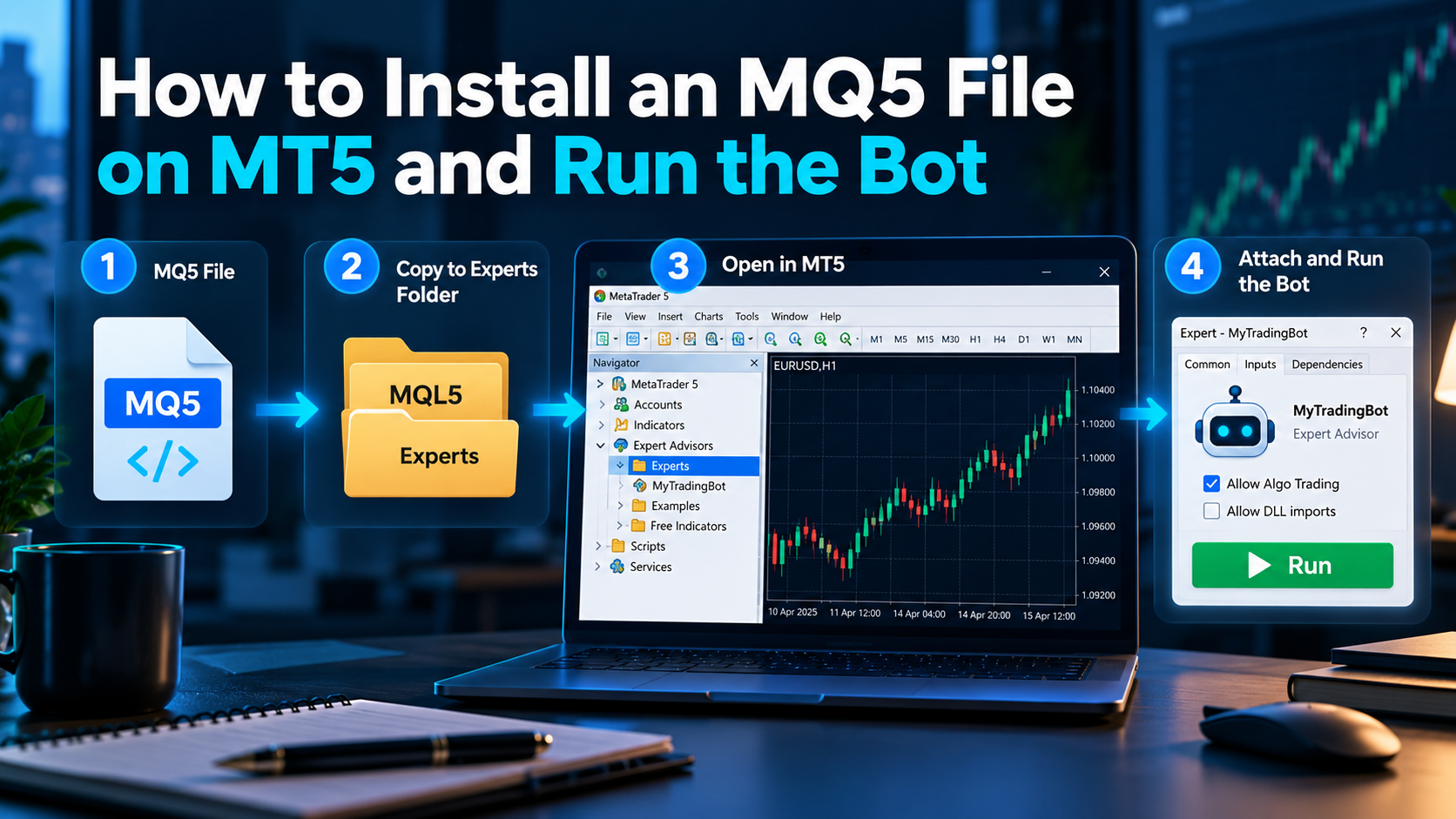
What an mq5 file is
An .mq5 file is a plain text file containing MQL5 source code, which is the programming language used to build trading robots and indicators for MetaTrader 5.
Your MetaTrader 5 platform cannot run an .mq5 file directly. It needs an .ex5 file, which is the compiled, machine-readable version of that code. If you only have the .mq5 file, you must compile it inside the platform before you can attach it to a chart.
Step 1: Open the data folder in MetaTrader 5
You must place the file in a specific system folder on your computer.
- Open your MetaTrader 5 desktop terminal.
- Click File in the top menu bar.
- Click Open Data Folder.
A Windows File Explorer window will appear on your screen. This folder contains all the internal files for your specific installation of the platform.
Step 2: Move the mq5 file into the Experts folder
Once the data folder is open, navigate to where trading bots live:
- Double-click the MQL5 folder to open it.
- Double-click the Experts folder.
- If you want to keep your files organized, you can open the Advisors subfolder, or you can paste the file directly inside Experts.
- Copy your
.mq5file from your computer downloads and paste it into this folder.
Do not put the file in the Indicators or Scripts folder. MetaTrader 5 treats these tools differently:
- An Expert Advisor (bot) can open, modify, and close trades automatically.
- An Indicator only draws lines, bars, or calculations on your chart and cannot place orders.
- A Script runs a single action once and then stops immediately.
If you put a bot file into the Indicators folder, it will not appear in the correct menu, and it will not trade.
Step 3: Compile the code in MetaEditor
Now you must turn the .mq5 source code into an executable .ex5 file.
- Go back to MetaTrader 5.
- Click Tools in the top menu bar, then click MetaQuotes Language Editor (or press the F4 key on your keyboard). MetaEditor will open in a separate window.
- Look at the Navigator window on the left side of MetaEditor. Expand the Experts folder to locate your file.
- Double-click your
.mq5file to open the code in the center workspace. - Click the green Compile button in the top toolbar (or press F7).
Look at the Errors panel at the bottom of the MetaEditor screen.
- If it shows
0 errors, 0 warnings, the process worked. MetaEditor has now created an.ex5file in the same folder. - If it shows errors in red text, the code is broken or outdated. The platform cannot build the bot until those code errors are fixed.
- If it shows warnings in yellow text but
0 errors, the bot will still run. Warnings simply mean the code uses outdated syntax or unused variables.
Once compilation is complete with zero errors, close the MetaEditor window.
Step 4: Turn on automated trading in terminal settings
By default, MetaTrader 5 blocks all automated trading to prevent accidental orders. You must grant permission globally before any individual bot can execute a trade.
- In MetaTrader 5, click Tools in the top menu, then click Options (or press Ctrl + O).
- Click the Expert Advisors tab.
- Check the box labeled Allow Algo Trading.
- Check the box labeled Allow DLL imports only if your specific bot requires an external connection or license check. If your bot does not need this, leave it unchecked for security.
- Click OK.
- Look at the top toolbar of MetaTrader 5. Find the button labeled Algo Trading. Click it so that it displays a green play icon. If it has a red stop icon, all bots on all charts are paused.
Step 5: Attach the bot to a chart
A trading robot only runs on the specific chart you assign it to.
- Open the chart for the currency pair or asset you want to trade (for example, EURUSD). Set the chart to the correct timeframe required by the bot (such as M15 or H1).
- Open the Navigator window inside MetaTrader 5 by clicking View in the top menu, then Navigator (or press Ctrl + N).
- Expand the Expert Advisors list, then expand Advisors.
- Find the name of your bot.
- Drag the bot name from the Navigator window onto your open chart, or double-click it.
A settings window for the robot will open immediately.
Step 6: Configure the bot inputs and start
Before the bot begins running, you must confirm its operating parameters.
- In the window that popped up, click the Common tab. Make sure the box labeled Allow Algo Trading is checked here as well.
- Click the Inputs tab. This tab displays the custom variables set by the programmer, such as lot size, stop loss distance, take profit distance, and indicator settings.
- Adjust the numbers to match your risk rules. For example, if you trade a 1,000 dollar account and do not want to risk more than 10 dollars per trade, set your lot size and stop loss so the maximum loss does not exceed that amount.
- Click OK.
The bot is now running.
How to tell if the bot is working
Look at the top right corner of the chart where you attached the bot.
- A small blue hat icon with a green play symbol: The bot is active, connected, and authorized to place orders when its market conditions are met.
- A small blue hat icon with a red circle: The bot is attached to the chart, but it is not allowed to trade.
- No hat icon at all: The bot is not attached to this chart.
If the hat icon has a red mark, you missed one of two settings:
- The global Algo Trading button in the top toolbar is turned off (red). Click it to turn it green.
- The bot-specific permission is turned off. Press F7 on your chart to open the bot settings, go to the Common tab, check Allow Algo Trading, and click OK.
Where to check for errors
Trading bots run quietly in the background. They do not show pop-up messages when an order fails. You must read the log tabs at the bottom of the screen to verify that the bot is running properly.
Open the Toolbox window at the bottom of the screen (click View, then Toolbox, or press Ctrl + T).
The Experts tab
This tab displays actions taken directly by the bot code.
- When you attach the bot, it will print a message stating that it was loaded successfully.
- If the bot tries to place a trade, it will print the attempt here.
- If you see
trade disabled, your broker does not allow automated trading on that asset or account type. - If you see
investor mode, you logged into MetaTrader 5 with your read-only password. You must log in using your main trading password to execute trades.
The Journal tab
This tab records the connection between your terminal and your broker's server.
- If an order fails, the Journal shows the exact server rejection code.
Off quotesmeans the broker cannot fill your order at the requested price due to lack of liquidity or high volatility.Not enough moneymeans your account balance or margin is too low to open the lot size specified in the bot settings.Market closedmeans you are trying to run the bot outside of trading hours for that specific instrument.
If you shut down your computer or close the MetaTrader 5 application, the bot stops running immediately and cannot monitor the market or manage trades. To keep a bot running day and night without interruption, traders run MetaTrader 5 on a Virtual Private Server (VPS), which is an online computer that stays powered on constantly. Systems like AXION ALGO operate continuously on MetaTrader 5 through remote servers for this reason.